
How to Take Hands-Free Photos on iPhone
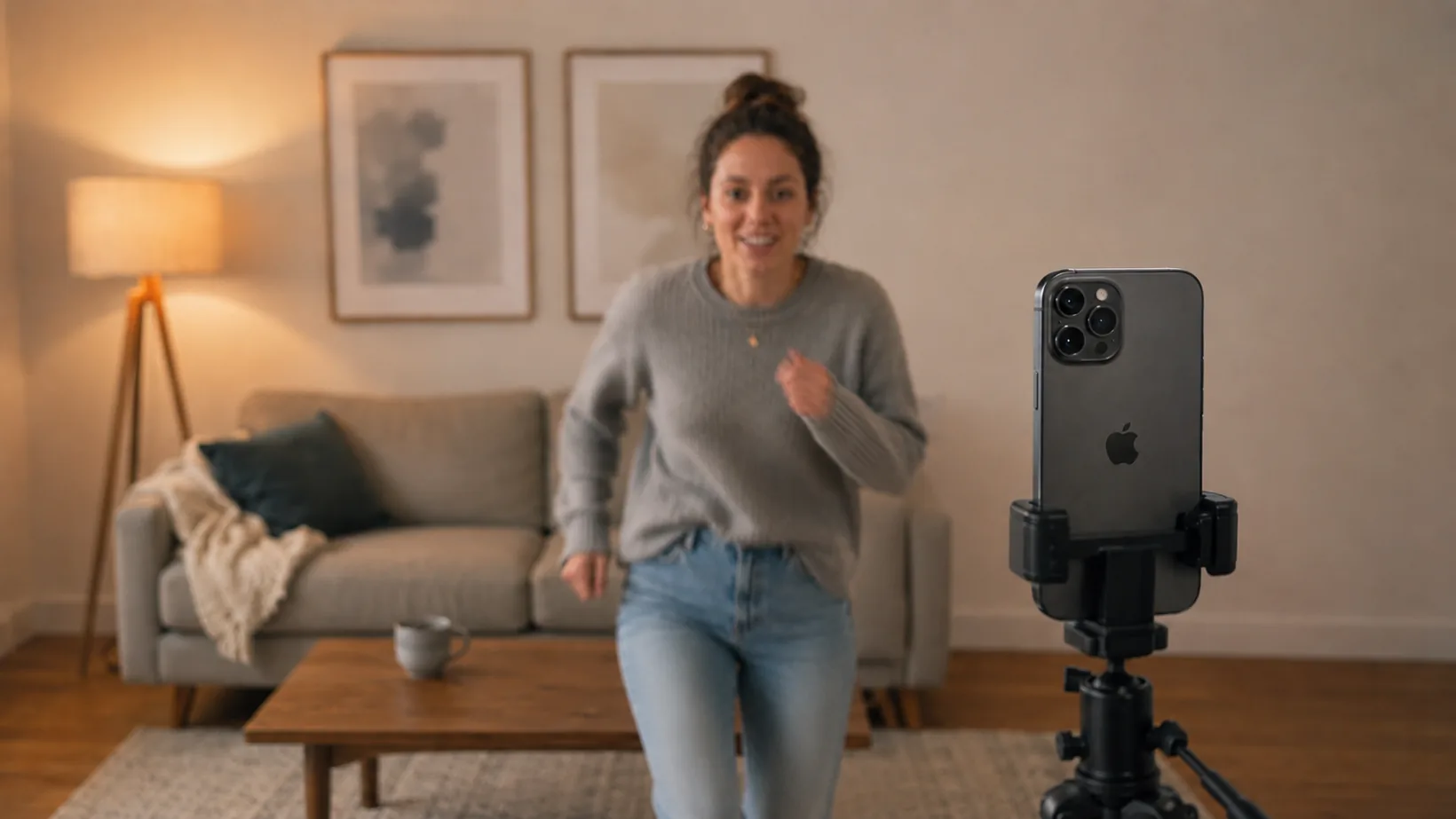
Prop the phone up, stand where you want to be, and say “take a photo”. No countdown to race, no clicker in your hand, and no one stuck behind the camera. Here's how hands-free photos actually work on an iPhone — and where the built-in options run out.
The short answer
To take a photo on an iPhone without touching it: prop or mount the phone, open a voice-controlled camera app, get into position, and say “take a photo”. The shutter fires while you stay exactly where you are. The stock Camera app can't do this by voice — Siri opens the Camera but can't press the shutter — so hands-free photos need a voice camera app, a physical remote, an Apple Watch, or an accessibility workaround.
Viddycom is the first natural-language, voice-controlled iOS camera app, so there's no exact phrase to memorise: “take a photo”, “snap”, “snap one”, “shoot it” and “capture” all work. It listens continuously by default and runs on any iPhone with iOS 18.6 or later.
Set up once — then just talk
The whole point is that setup happens once and the phone is never touched again:
- Prop or mount the iPhone. A cheap mini tripod is ideal, but a stack of books, a windowsill, or a shelf works just as well — anything that holds the phone steady at roughly chest height.
- Open Viddycom and check the frame. The edge glow pulses teal to show it's listening. Say “grid on” for composition lines, “selfie mode” to flip to the front camera, or “frame for Instagram” to see a live overlay of exactly what that crop will keep.
- Walk to where you want to be. Nothing fires until you ask for it, so no countdown is chasing you. Fix your hair. Move the chair. Take your time.
- Say “take a photo”. That's the whole thing. Want a beat to settle first? Say “photo in 3 seconds” and a white countdown runs before the shutter fires.
Because the app keeps listening after each shot, you can fix the picture from where you're standing instead of walking back to the phone between attempts:
| What you want | Say something like |
|---|---|
| Take the shot | “Take a photo” / “Snap” / “Shoot it” / “Capture” |
| Give yourself a moment first | “Photo in 3 seconds” — a white countdown runs, then the shutter fires |
| Several shots to pick from | “Take five photos” / “Take 10 photos” — up to 100, counted on screen |
| Get closer without moving | “Zoom in”, “zoom to 2x”, then “a bit more” |
| Soften a messy room | “Blur my background” |
| Switch which camera | “Flip camera” / “Selfie mode” / “Front camera” |
| Fix the light | “Flash on”, “Flash off”, “Auto flash” |
| Check the crop before you shoot | “Frame for Instagram” / “Frame for TikTok” — a live viewfinder overlay; the saved file is unchanged |
| Bin the last one | “Don't save that” / “Delete the last photo”, within about 10 seconds |
| Stop something already running | “Cancel” / “Never mind” — calls off a countdown or a run of photos part-way through; shots already taken are kept, so it is not an undo |
You can also stack up to three of these in one sentence, which is usually how people actually talk: “Selfie mode, blur my background, and take three photos.” For every phrasing that works, see the full voice commands reference.
Your voice is turned into text on your device and audio recordings are never stored or sent; on iPhones with Apple Intelligence the language understanding runs on-device too. Ordinary conversation is ignored — no error beeps. If you'd rather it answered only when addressed, switch on the optional “Show Time” wake word in Settings. One honest caveat that applies to every voice camera app: the iPhone mic favours the loudest, clearest voice, so in a noisy group put yourself in the position of the clear speaker.
Getting shots you'd actually keep
Nobody keeps the first photo. The real job isn't firing the shutter once — it's coming away with a few frames worth choosing between, without a walk back to the phone after each one.
This is exactly where the self-timer gets it backwards. At the time of writing, the iPhone Camera's self-timer takes 10 photos in a row by default in regular photo mode — so it hands you a pile of near-identical frames to cull afterwards. You only get a single frame if Live Photos or the flash is switched on, and either way the countdown chooses the moment, not you.
Asking out loud inverts that. You say how many you want, and when:
- “Take five photos” — a small set to choose from, fired when you're ready rather than when a countdown expires. You can ask for up to 100, and the app counts each shot on screen as it goes — 1/10, 2/10, 3/10 and so on.
- “Don't save that” — bins the last capture within about 10 seconds. Culling happens from where you're standing, not from the tripod.
- “A bit more” — nudges the zoom after you've seen the first attempt, instead of guessing the framing before you walked away.
Stand where you want to be, say “take five photos”, then “don't save that” for the one that didn't work — a whole shoot without touching the phone once.
Two things happen automatically while you do it. Face detection is always on, drawing a brief box around each face it finds, so you can see at a glance that the camera has actually found you. Face tracking is a separate feature and off by default — say “track me” and the framing follows you, keeping you the same size on screen as you move nearer or further away.
Group photos and self-portraits
Every group photo has the same tax: one person doesn't appear in it, or everybody stands frozen while someone sprints back from a countdown. Speaking the shutter removes both.
- Prop the phone where the group can see it — a mantelpiece, a table, a shelf. Say “grid on” if you want the horizon straight.
- Everyone gets in, including whoever set it up. Say “zoom out” if the edges of the group are clipped, or “a bit less” to fine-tune.
- Say “take a photo” when the group is genuinely ready — not when a timer decides. That single difference is why hands-free group shots have fewer half-blinks in them.
- Ask for more if you need them. “Take three photos” gives you options; “don't save that” bins the one where someone looked away.
For self-portraits the same setup applies, with “selfie mode” to flip the camera and “blur my background” if the room behind you is doing you no favours. If you're moving around — showing an outfit, demonstrating something — “track me” keeps you the same size on screen while you do it.
Filming rather than shooting stills? See hands-free video recording, or the full solo setup in how to film yourself alone.
Timers, remotes and AirPods — and where they stop
There are several ways to fire an iPhone shutter without tapping it. Each genuinely works, up to a point:
| Option | What it does | Where it stops |
|---|---|---|
| Self-timer + run back | The stock Camera fires after a fixed delay | You're racing a countdown, and in regular photo mode it takes 10 photos in a row by default — frames you then have to cull |
| Bluetooth remote | A clicker in your hand fires the shutter | Easy to spot in the shot unless you hide it, one more thing to charge and lose — and it can't zoom, reframe, or blur anything |
| Apple Watch Camera Remote | Shows a live preview on your wrist and fires the shutter | Needs a Watch, and it's on your wrist in the photo — awkward for group shots where everyone can see you tapping |
| AirPods camera remote (iOS 26) | Press the stem on recent AirPods to take a photo, or to start and stop a video, in a supported camera app | A button on your ear, not your voice: one trigger, no zoom, framing or background blur — and you're wearing AirPods in every shot |
| Voice Control (Accessibility) | Switch it on in Settings, then say “Tap Take Picture” | Rigid exact phrases — it taps the screen for you rather than understanding the camera |
| Siri | “Hey Siri, open the Camera” works | Siri opens the app and stops there — it can't press the shutter for you |
| A voice camera app (Viddycom) | Natural-language shutter, several shots on request, plus zoom, framing, blur and discarding the last shot — all spoken | It's a subscription app (3-day free trial, then $4.99/month or $39.99/year) |
Built-in feature details were checked against Apple's documentation and current reporting on July 2, 2026, and the AirPods camera remote against Apple's documentation and current reporting, September 1, 2026; built-in behaviour may change with iOS updates.
For the full Siri and Voice Control breakdown, see Viddycom vs Siri and iPhone Voice Control. For every app in the category, see the best voice-controlled camera apps.
Frequently Asked Questions
How do I take a photo on my iPhone without touching it?
Prop or mount your iPhone, open a voice-controlled camera app like Viddycom, get into position, and say “take a photo”. The shutter fires while you stay exactly where you are — no self-timer countdown to race and no remote in your hand. The stock Camera app can't do this by voice: Siri can open the Camera but it can't press the shutter, so a hands-free photo needs a voice camera app, the free “Say Cheese” Siri shortcut, a physical remote, recent AirPods, an Apple Watch, or the accessibility Voice Control workaround.
Is there an app that takes a picture when you tell it to?
Yes. Viddycom is the first natural-language, voice-controlled iOS camera app, so you don't have to learn an exact phrase — “take a photo”, “snap”, “snap one”, “shoot it”, and “capture” all fire the shutter. It listens continuously by default and runs on any iPhone with iOS 18.6 or later.
Can I get several photos to choose from instead of just one?
Yes — ask for as many as you want: “take five photos” or “take 10 photos”, up to 100, with an on-screen counter tracking each shot. This is the part the self-timer gets backwards. At the time of writing, the iPhone Camera's self-timer takes 10 photos in a row by default in regular photo mode, so you get frames you didn't ask for and have to cull them later; you only get a single frame if Live Photos or the flash is switched on.
How do I get in the group photo instead of taking it?
Prop the phone where the group can see it, get in the frame yourself, and say “take a photo” when everyone is actually ready — nobody is left behind the camera and nobody sprints back from a countdown. If the first one doesn't land, say “take three photos” for options, or “don't save that” within about 10 seconds to bin the last shot without walking over to the phone.
How much does Viddycom cost?
Viddycom is $4.99/month or $39.99/year (about $3.33/month — saving $19.89 a year), and both plans start with a 3-day free trial. That's Founder pricing: the lowest rate we will ever offer, and it's yours for as long as you stay subscribed. It runs on any iPhone with iOS 18.6 or later.
Get Viddycom
Viddycom: Voice Camera is $4.99/month or $39.99/year (about $3.33/month), both with a 3-day free trial — and that's Founder pricing: the lowest rate we will ever offer, and it's yours for as long as you stay subscribed. It runs on any iPhone with iOS 18.6 or later; the best experience is on iPhone 15 Pro and newer with Apple Intelligence, where processing runs on-device. Android is coming soon.
Try free for 3 days — then $4.99/month or $39.99/year. iPhone, iOS 18.6+.
More Guides
- Hands-free video recording — start, direct and stop a take by voice.
- How to film yourself alone — the full solo-creator setup, from mounting to framing.
- The complete voice commands list — every command, with the natural phrasings that work.
- What is a voice-controlled camera app? — the category explained.
- Viddycom vs Siri and iPhone Voice Control — what each one can and can't do with the camera.
- The best voice-controlled camera apps — an honest comparison of what's out there.
- Viddycom home — demos, pricing, and the full FAQ.
Last updated: September 1, 2026. This page reflects the shipping iOS app as of that date; the AirPods camera remote description was re-checked against Apple's documentation on September 1, 2026.