
Viddycom Voice Commands — The Complete List
Every voice command Viddycom understands — photos, several in a row, video, zoom, framing and more — with the natural variations that work.
What is Viddycom?
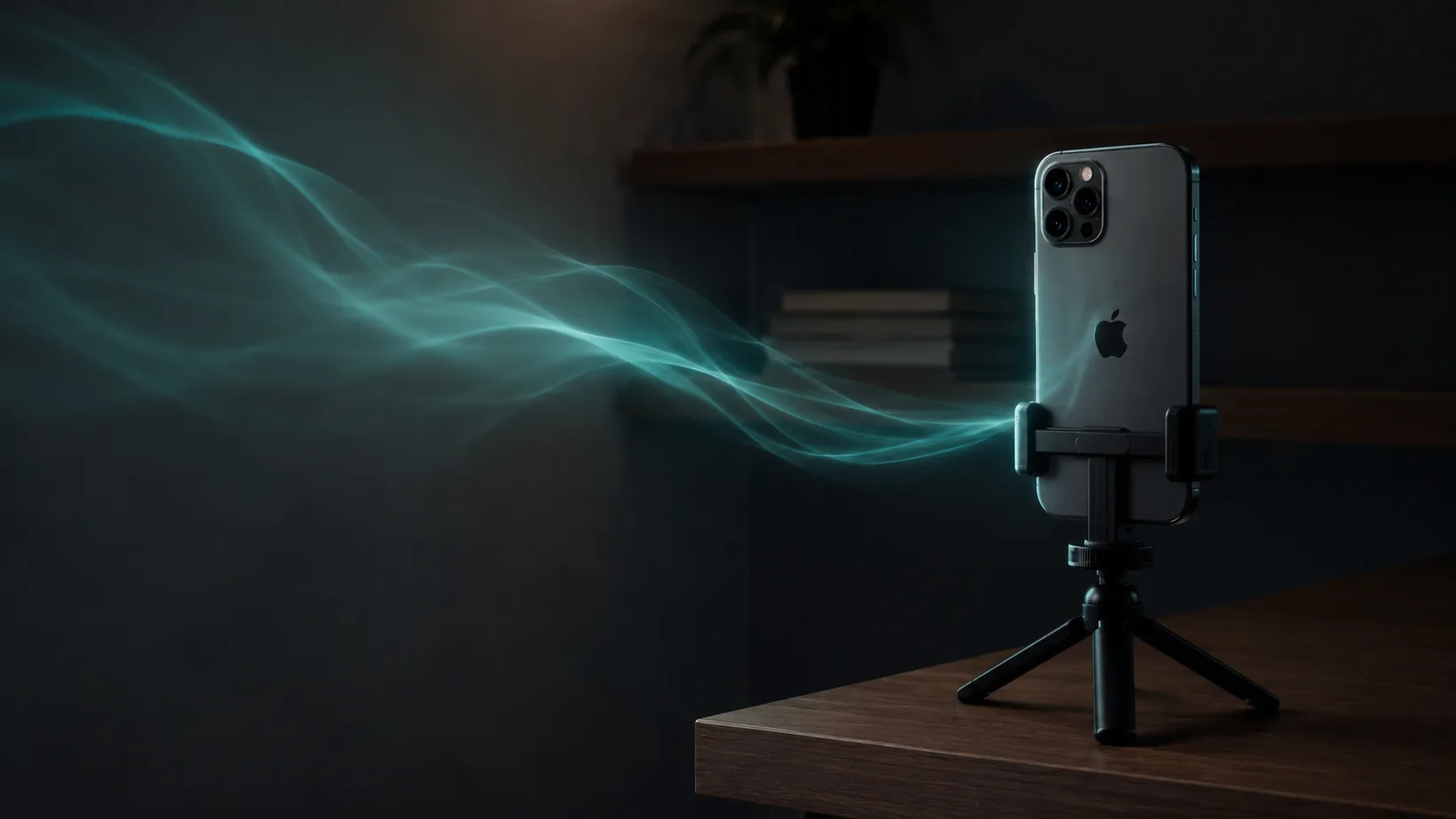
Viddycom is a voice-controlled camera app for iPhone (iOS 18.6+) that responds to natural-language voice commands across the camera controls you actually reach for while filming: say “take a photo”, “start recording”, “zoom to 2x”, “blur my background” or “frame for TikTok” and the camera does it, hands-free. It listens continuously by default — no wake word needed — and you can chain up to three commands in one sentence. This page lists every command category with the common phrasings for each.
Viddycom is the first natural-language, voice-controlled iOS camera app, and that phrase matters here: this is a reference, not a requirement. You don't need to memorise specific phrases — speak naturally and Viddycom will understand. Recognition runs on Apple's on-device speech engine, which handles a wide range of English accents.
The Complete Command List
Organised by what you're trying to do. Each table shows common phrasings on the left and what the camera does on the right — many variations of these commands work, so say it your way.
Taking a photo
| You say | The camera does |
|---|---|
| “Take a photo” / “Snap” / “Shoot it” / “Capture” | Captures a photo |
| “Take a pic” / “Snap one” / “Get a shot” | Casual phrasings work too — it all takes the photo |
Several photos in a row
| You say | The camera does |
|---|---|
| “Take 10 photos” | Takes them one after another, counting each shot on screen — 1/10, 2/10, 3/10… |
| “Take 5 photos” | Any number up to 100 works |
Background blur
| You say | The camera does |
|---|---|
| “Blur my background” | Soft, pro portrait look — you stay sharp while the background melts away |
| “Blur off” | Turns background blur off |
Live Photos
| You say | The camera does |
|---|---|
| “Live Photos on” / “Live Photos off” | Toggles Live Photos |
Timer
| You say | The camera does |
|---|---|
| “Take a photo in 3 seconds” / “Photo in 3 seconds” | Countdown, then capture |
| “5 second countdown” | The same, with your choice of delay |
Video
| You say | The camera does |
|---|---|
| “Start recording” / “Roll camera” | Starts video — the edge glows red while recording |
| “Stop recording” / “That's a wrap” | Ends and saves the video |
Voice commands keep working while you record, so you can adjust the shot mid-take.
Zoom
| You say | The camera does |
|---|---|
| “Zoom in” / “A bit closer” / “Closer” | Zooms in |
| “Zoom out” / “Wider” / “Pull back” | Zooms out |
| “Zoom to 2x” | Jumps to a specific zoom level |
| “A bit more” / “A bit less” | Nudges the last zoom action in either direction |
| “Zoom in slowly” | Moves slowly and smoothly instead of jumping straight there |
| “Zoom to 5 slowly” | Moves slowly to the level you asked for — say how far and how slowly in one go |
Face tracking
| You say | The camera does |
|---|---|
| “Track me” / “Follow me” / “Keep me in frame” / “Auto frame” | Keeps you the same size on screen as you move closer or further away |
| “Stop tracking” / “Tracking off” / “Stop following me” | Turns face tracking off |
Face detection and face tracking are two different things. Face detection runs on its own the whole time the camera is open — you’ll see a box flash briefly around each face as it’s picked up. Face tracking is separate and stays off until you ask for it.
Steady mode
| You say | The camera does |
|---|---|
| “Steady mode on” / “Steady mode off” | Toggles extra stabilisation |
HDR video
| You say | The camera does |
|---|---|
| “HDR on” / “HDR off” | Toggles HDR video |
Aspect ratios
| You say | The camera does |
|---|---|
| “Frame for TikTok” / “Frame for Reels” / “Frame for YouTube” / “Frame for Instagram” | Shows a live viewfinder overlay with that platform's crop |
| “9:16” / “16:9” / “4:5” — or any ratio | Overlay for the exact ratio you asked for |
| “Ratio off” | Clears the overlay |
The overlay shows exactly what's in your crop before you shoot, so you shoot once and post everywhere. It's a viewfinder guide only — the saved photo or video isn't changed.
Grid
| You say | The camera does |
|---|---|
| “Grid on” / “Show grid” | Composition grid on — nail your framing without tapping the screen |
| “Grid off” / “Hide grid” | Composition grid off |
Switching cameras
| You say | The camera does |
|---|---|
| “Flip camera” / “Switch camera” | Swaps between front and back cameras |
| “Front camera” / “Selfie mode” | Switches to the front camera |
Flash
| You say | The camera does |
|---|---|
| “Flash on” / “Flash off” | Toggles flash |
| “Auto flash” | Lets the camera decide |
Save or discard
| You say | The camera does |
|---|---|
| “Bin that” / “Don't save that” / “Delete that” | Discards the last capture — say it within about 10 seconds of the shot |
| “Delete the last photo” / “Get rid of that” / “Scrap that one” | The same — plenty of natural phrasings work |
Discarding is not the same as “Cancel”. Cancel stops something that is still happening; these commands get rid of a shot you have already taken.
Chaining Commands
Say up to three commands in one sentence and Viddycom executes them all, in order. It works whether you use words like “and” and “then” or just run the commands together.
| You say | The camera does |
|---|---|
| “Blur the background, zoom in, then take a photo” | Blur on → zoom → capture, in order |
| “Zoom in, flash on, take a photo” | Three commands, one breath |
| “Flip camera then take a photo” | Swaps to the front camera, then captures |
Listening Modes
- Continuous listening (the default). Sign in the first time — with Apple, Google, or your email — then open the app and it's already listening — the edge glow pulses teal while it listens. Run through an entire session — “start recording” → do your thing → “stop recording” → “flip camera” → “take a photo” — without touching the phone once.
- Optional “Show Time” wake word. Prefer the camera to listen only when addressed? Switch it on in Settings and Viddycom starts listening when you say “Show Time”. Wake-word detection runs entirely on-device. In wake-word mode, say it again after a photo or a stopped recording — or tap the waveform.
- Tap-to-listen. Tap the waveform button in voice mode to start listening immediately — handy in loud rooms.
Whichever mode you use, the app ignores normal conversation: speech is analysed on-device only to spot camera commands, and chit-chat, background speech, and non-commands are silently ignored.
Practical Tips
- Wait for the confirmation. After a command, wait for the teal “Confirmed” message before giving the next one — the app shows “Listening...” when it's ready again.
- Speak at conversational volume. Voice pickup is tuned for ~1 metre, with useful pickup to ~3 metres. Place the phone where it can hear you clearly.
- Don't whisper. Whispered speech typically isn't picked up — this is intentional, to prevent accidental triggering.
- Small changes keep it listening. After a small change (zoom, flash, grid) Viddycom keeps the listening state going; action commands (take a photo, stop recording) complete the interaction.
- Foreground only. Listening works only while the app is open — iOS doesn't allow background speech recognition, so it can't work from the lock screen.
- AirPods and music. Voice pickup is less reliable with AirPods during active playback — pause the music, or use the built-in mic.
- One voice at a time. Like every voice-controlled iPhone app, Viddycom relies on the iPhone's built-in microphones, which can struggle to separate one voice from another when several people are talking loudly at once right beside the phone. Everyday background noise — music, room sound, general bustle — is fine; the app just needs to hear you clearly.
- Backing out. Say “Cancel” or “Never mind” and Viddycom stops whatever is still in progress — it calls off a running countdown, stops a run of photos part-way through (the photos already taken are kept), or stops a recording. If nothing is in progress, nothing happens. It is not an undo: to get rid of a shot you have already taken, use a discard command such as “bin that” within about 10 seconds.
Frequently Asked Questions
Do I have to memorise exact phrases?
No. Viddycom understands natural language, so you don't need to memorise specific phrases. Say “take a pic”, “snap one”, or “get a shot” — it all works. The commands on this page are common forms, not a fixed vocabulary.
How many commands can I say in one sentence?
Up to three. Say something like “blur the background, zoom in, then take a photo” and Viddycom runs them all, in order. It works whether you use joining words like “and” and “then” or just run the commands together.
Does it work while recording?
Yes — voice commands keep working while you record. Say “zoom in slowly” mid-take so the zoom moves slowly instead of jumping, then “stop recording” (or “that's a wrap”) when you're done.
What's the wake word?
The optional wake word is “Show Time” — but it's off by default, because Viddycom listens continuously whenever the app is open. If you'd prefer the camera to listen only when addressed, switch the wake word on in Settings.
Do aspect-ratio commands crop my saved photos?
No. “Frame for TikTok” or “9:16” shows a live viewfinder overlay so you can see your crop before you shoot — the saved file isn't changed. Say “ratio off” to clear it.
Get Viddycom
Viddycom: Voice Camera is $4.99/month or $39.99/year (about $3.33/month), both with a 3-day free trial — and that's Founder pricing: the lowest rate we will ever offer, and it's yours for as long as you stay subscribed. It runs on any iPhone with iOS 18.6 or later; the best experience is on iPhone 15 Pro and newer with Apple Intelligence, where processing runs on-device. Android is coming soon.
Try free for 3 days — then $4.99/month or $39.99/year. iPhone, iOS 18.6+.
More Guides
- The best voice-controlled camera apps — an honest comparison of what's out there.
- Viddycom vs Siri and iPhone Voice Control — what each one can and can't do with the camera.
- How to film yourself alone — a practical guide for solo creators.
- Press kit — facts, blurbs, and reviewer notes.
- Viddycom home — demos, pricing, and the full FAQ.
Last updated: September 1, 2026. This reference reflects the shipping iOS app as of that date.